Journal

The web we broke (by Ethan Marcotte)

@beep writes: “WebAIM has published an accessibility analysis of the top one million home pages and the results are abysmal”.

To address the issue he recommends we start small (picking up new accessibility tips regularly) and work together.

I agree. The web is supposed to be universal. We developers – or more accurately developers, designers, managers i.e. all of us – need to up our collective game to get things back on track.

I’ve always been interested in web accessibility and tried to do my best… but I can do better. I’ve just subscribed to David Kennedy’s A11y Weekly newsletter and plan to work through some sections of https://a11yproject.com/ as soon as possible.

Accessible modal dialogues in 2019

I previously noted Keith J Grant’s article on the HTML dialog element which promised a native means of handling popups and modal dialogues. I’ve not yet used dialog in production, partly because of spotty browser support (although there is a polyfill) but also partly because—for reasons I couldn’t quite put my finger on after reading the spec—it just didn’t feel like the finished article.

Fast forward to March 2019 and Scott O’Hara has written an excellent piece describing why it’s still not ready. There are a combination of factors: lack of browser support, reliance on JavaScript; and multiple accessibility issues.

The good news is: having dug deeper into Scott’s work I see that among the many accessible components he has shared with the world is a custom, accessible modal dialogue. So next time the need arises, I think I’ll start there.

Thanks, Scott!

Box Shadow around the full box

Sometimes when coding a UI element you want a shadow around the whole box. However, most CSS box-shadow examples/tutorials tend to show inset box-shadows or ones that otherwise sit off to the side.

Here’s how to apply box-shadow to the whole box for a simple but nice effect.

.box-with-shadow {
  box-shadow: 0 0 4px #ccc;
}

And here’s how it looks:

Lorem ipsum

Grey Scales – something fishy with SVG

Last Sunday I spent a free afternoon messing around with levelling up my skills with SVG.

I’d been meaning to finish reading Chris Coyier’s book Practical SVG for a while and although it goes pretty deep, I finally achieved it. Much of it focuses on using SVG within an icon system.

I have a number of thoughts I’ll share soon regarding my preferences on when to use inline SVG and when to use SVG as a background image.

In the meantime, here’s some fun I had implementing one of the many design tricks from the book – nesting a photo within an <svg> element then applying i) a greyscale filter; and ii) a black-to-white gradient mask to transition the photo from colour to black and white.

Since the photo’s subject is a lovely piece of fish, I’m calling my remix Grey Scales.

Check out Grey Scales on CodePen.

PS the original photo is courtesy of my talented wife. Clair – sorry for ruining your lovely photo and for yet another in a long line of fish puns.

GRID: a simple visual cheatsheet for CSS Grid Layout

Now this is great. Even though I’m now using CSS Grid fairly regularly there are still aspects of the syntax that I hadn’t fully wrapped my head around. This visual representation really helps!

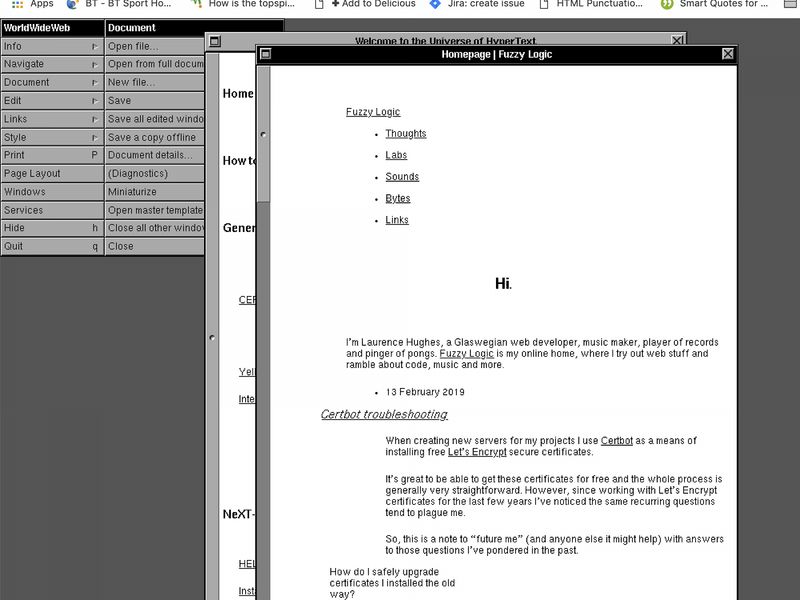
WorldWideWeb Rebuild

fuzzylogic.me rendered on the WorldWideWeb browser
fuzzylogic.me rendered on WorldWideWeb – not pretty, but readable!

This February, a team of intrepid developers and designers flew into CERN on a mission to recreate WorldWideWeb – the original web browser from 1990 – within a contemporary browser. This would allow all of us to “experience the rather humble origins of this transformative technology”.

What a fantastic project and fitting celebration of 30 years of the web.

And just for fun, see above for a screenshot of how fuzzylogic.me renders on WorldWideWeb.

Details and summary for no-JavaScript disclosure widgets

The fairly-recently added <details> element is a great, native HTML way to toggle content visibility.

<p>Lorem ipsum dolor sit amet.</p>

<details> <summary>System Requirements</summary> <p>Requires a computer running an operating system. The computer must have some memory and ideally some kind of long-term storage.</p> </details>

<p class="end">Remember: built-in beats bolt-on, bigly!</p>

<!-- <details> is great but there are a few gotchas:

  • Not totally flexible design-wise
  • Unsuitable for accordions with multiple sibling elements unless you add some JS
  • Unsupported in IE 11 (but content is still available) -->
:root {
font-size: 110%;
font-family: system-ui, -apple-system, "Segoe UI", Roboto, Helvetica, Arial,
  sans-serif, "Apple Color Emoji", "Segoe UI Emoji";


}

input, button { font-size: inherit; }

.end { margin-top: 2rem; }

Certbot Troubleshooting

When taking the DIY approach to building a new server, Certbot is a great option for installing secure certificates. However, sometimes you can run into problems. Here, I review the main recurring issues I’ve encountered and how I fixed them.

When creating new servers for my projects I use Certbot as a means of installing free Let’s Encrypt secure certificates.

It’s great to be able to get these certificates for free and the whole process is generally very straightforward. However, since working with Let’s Encrypt certificates over the last few years I’ve found that the same recurring questions tend to plague me.

This is a note to “future me” (and anyone else it might help) with answers to the questions I’ve pondered in the past.

How do I safely upgrade from the old LE system to Certbot?

For servers where you previously used the 2015/2016, pre-Certbot Let’s Encrypt system for installing SSL certs, you can just install Certbot on top and it will just work. It will supersede the old certificates without conflict.

How do I upgrade Certbot now that Let’s Encrypt have removed support for domain validation with TLS-SNI-01?

Essentially the server needs Certbot v0.28 or above. See Let’s Encrypt’s post on how to check your Certbot version and steps to take after upgrading to check everything is OK. To apply the upgrade I performed apt-get update && apt-get upgrade -y as root although depending on when you last did it this might be a bit risky as it could update a lot of packages rather than just the Certbot ones. It might be better to just try sudo apt-get install certbot python-certbot-apache.

To what extent should I configure my 443 VirtualHost block myself or is it done for me?

When creating a new vhost on your Linode, DigitalOcean (or other cloud hosting platform) server, you need only add the <VirtualHost *:80> directive. No need to add a <VirtualHost *:443> section, nor worry about pointing to LE certificate files, nor bother writing rules to redirect http to https like I used to. When you install your secure certificate, certbot will automatically add the redirect into your original file and create an additional vhost file (with extension -le.ssl.conf) based on the contents of your existing file but handling <VirtualHost *:443> and referencing all the LE SSL certificate files it installed elsewhere on the system.

How should I manage automated renewals?

There’s no longer any need to manually add a cron job for certiticate renewal. Auto-renewal of certificates is now handled by a cron job which comes bundled with the certbot package you initially install – in my case usually a certbot ppa package for Ubuntu 16.04 or 18.04. However you won’t find that cron job in the crontab for either your limited user, nor the root user. Instead, it is installed at a lower level (/etc/cron.d) and should just work unless you’ve done something fancy with systemd in your system which in my case is unlikely.

How can I tell if renewals are working and what should I do if they’re not?

If you notice that the SSL certificate for your domain is within 30 days of expiry and hasn’t yet auto-renewed, then you know that something has gone wrong with the auto-renewal process. You can test for problems by running sudo certbot renew --dry-run. You may find that there is, for example, a syntax error in your apache2.conf or nginx config file which needs corrected – not that I’ve ever been guilty of this, you understand…