I’ve used Git for many years but it can still trip me up. At times I’ve worked primarily in a GUI (like Sourcetree or Fork), and other times directly on the command line. I’ve worked on projects where I’ve been the sole developer and others where I’m part of a large team. Regardless of the tools or context, I’ve learned there are certain need-to-knows. Here’s a list of useful Git concepts and commands for my reference and yours.
Note: the following is not an exhaustive list but rather the thing I keep coming back to and/or regularly forget. For deeper explanations, see the list of resources at the foot of the article.
Option 1: Create a new repo in your Github account
This generates a new, empty repo (optionally initialised with a README).
Do this when you will be working on a new, dedicated project rather than contributing changes to a pre-existing one.
Option 2: Create repo from a “template repository” (owned by you or someone else)
This generates a new repo with the same directory structure and files as the template. It’s a good option for starting your own new, potentially long-lived project from a solid starting point.
Unlike a fork it does not include the entire commit history of the parent repository. Instead it starts with a single commit.
Option 3: Fork an existing repo (usually owned by someone else)
This generates a new repo which is a copy of another repo, including its commit history. Your commits will update your copy rather than the original repo.
Do this by clicking the Fork button in the header of a repository.
This is good for (often short-lived) collaboration on an existing repo. You can contribute code to someone else’s project, via PRs.
Alternatively you might want to keep the original remote available so you can pull in its future project updates, but reset the origin remote to your new/target repo.
git remote rename origin upstream
git remote add origin https://github.com/mygithubusername/mynewproject.git
git push origin master
git pull origin master
# in the future the original repo gets an updategit pull upstream master
The source repo is my fork of a project to which I want to contribute
Duplicating (also knows as “duplicate without forking”)
This is a special type of clone. I know this is an option, but it‘s not one I’m familiar with or have had call to use. I can refer to Duplicating a repository if need be.
Start locally from a blank slate
Although cloning is the easiest way to get started locally, ocassionally I start by coding from scratch instead.
mkdir myproject &&cd myproject
echo"# Welcome to My Project Repo">> README.md
git init
gitadd README.md
git commit -m"first commit"# go to Github and create an empty repo, if you haven’t already.# then add as a remotegit remote add origin https://github.com/mygitusername/myproject.git
# push up, passing -u to set the remote branch as the default upstream branch our local branch will track# this saves typing out ‘origin master’ repeatedly in future.git push -u origin master
Remotes
Remove a remote from your local settings:
git remote rm<name>
Rename a remote:
git remote rename oldname newname
Configuration
Configure your favourite editor to be used for commit messages:
git config --global core.editor "nano"
Use git st as a shortcut for git status (to stop me mistyping as “statsu”):
Stage and commit all changes in a single command (note: doesn’t work with new, untracked files):
git commit -am"fix: typo in heading"
Branches
Show all local branches:
git branch
Show all local and remote branches:
git branch -a
Show branches you last worked on (most recently commited to):
git branch --sort=-committerdate
Save current state to new branch but don’t yet switch to it (useful after committing to wrong branch):
git branch newbranchname
Create and switch to new branch (main or whatever branch you want to branch off):
git checkout -b mynewbranch
Note that if you branch off foo_feature then when creating a PR in GitHub for your changes in mynewbranch you can change the Base branch from the default of main to foo_feature. This specifies that you are requesting your changes be merged into foo_feature rather than main and makes the comparison of changes relative to foo_feature rather than main.
Switch to an existing branch:
git checkout branchname
Save typing by setting the upstream remote branch for your local branch:
# git branch -u remotename/branchnamegit branch -u fuzzylogic/v3
# now there’s no need to type origin mastergit pull
Delete local branch:
git branch -d name_of_branch
# need to force it because of some merge issue or similar?git branch -D name_of_branch
Save changes temporarily
stash is like a clipboard for git.
# Before changing branch, save changes you’re not ready to commitgit stash
# change branch, do other stuff. Then when return:git stash pop
Staying current and compatible
fetch remote branch and merge simultaneously:
git pull remotename branchname
# common use case is to update our local copy of mastergit pull origin master
# shorthand when a default upstream branch has been setgit pull
# an alternative is to update (fetch) which does not auto-merge, then 'reset' to the latest commit on the remote# https://stackoverflow.com/questions/55731891/effects-of-git-remote-update-origin-prune-on-local-changesgit checkout master
git remote update --prunegit reset --hard origin/master
Merge another branch (e.g. master) into current branch:
git merge otherbranch
# a common requirement is to merge in mastergit merge master
Rebasing
git rebase can be used as:
an alternative to merge; and
a means of tidying up our recent commits.
As an alternative to merge its main pro is that it leads to a more linear therefore easier-to-read history. Note however that it is potentially more disruptive therefore not right for every situation.
Say I’ve been working on a feature branch and I think it’s ready.
I might want to just tidy up my feature branch’s commits and can do this with an “interactive rebase”. This technique allows me to tidy my feature branch work to remove trivial, exploratory and generally less relevant commits so as to keep the commit history clean.
I might also want to bring in master to ensure synchronicity and compatibility. rebase sets the head of my feature branch to the head of master then adds my feature branch’s commits on top.
While it’s a good idea to rebasebefore making a PR, don’t use it after making a PR because from that point on the branch is public and rebasing a public branch can cause problems for collaborators on the branch. (The only exception to the previous rule is if you’re likely to be the only person working on the PR branch)
Rebuild your feature branch’s changes on top of master:
Force push your rebased branch (again, only when you’re unlikely to have/require collaborators on the PR):
git push --force origin myfeaturebranch
Tidy a feature branch before making a PR:
git checkout myfeaturebranch
git rebase -i master
# just tidy the last few (e.g. 3) commitsgit rebase -i HEAD~3
# this opens a text editor listing all commits due to be moved, e.g.:
pick 33d5b7a Message for commit #1
pick 9480b3d Message for commit #2
pick 5c67e61 Message for commit #3# change 'pick' to 'fixup' to condense commits, say if #2 was just a small fix to #1
pick 33d5b7a Message for commit #1
fixup 9480b3d Message for commit #2
pick 5c67e61 Message for commit #3# alternatively if use 'squash', after saving it will open an editor# and prompt you to set a new commit message for the combined stuff.
pick 33d5b7a Message for commit #1
squash 9480b3d Message for commit #2
squash 5c67e61 Message for commit #3
Show commit history (most recent first; q to quit):
git log
# compact versiongit log --oneline# limit scope to commits on a branchgit log branchname
Check if your feature branch is trailing behind:
# show commits in master that are not yet in my feature branchgit log --oneline my-feature..master
# show commits on remote branch that are not yet in my local branchgit log --pretty='format:%h - %an: %s' new-homepage..origin/new-homepage
# show commits by me that included “heroku” and that changed file Gemfilegit log --author=Demaree --grep=heroku --oneline Gemfile
Show changes that occurred in the most recent commit or a given commit.
git show

# show changes in a given commit
git show 591672e
Review differences between staged changes and last commit:
gitdiff--cached
Review changes between a given version/commit and the latest:
gitdiff 591672e..master
Fixing Things
Discard all your as-yet uncommitted changes:
git restore .
Get your local feature branch out of a problem state by resetting to the state it is on the remote (e.g. at last push).
git reset --hard origin/my-branch
Undo all the changes in a given commit:
git revert 591672e
Alter the previous commit (change the message and/or include further updates):
# we are amending the previous commit rather than creating a new commit.# if file changes are staged, it amends previous commit to include those.# if there are no staged changes, it lets us amend the previous commit’s message only.git commit --amend
Move current branch tip backward to a given commit, reset the staging area to match, but leave the working directory alone:
git reset 591672e
# additionally reset the working directory to match the given commitgit reset --hard 591672e
See what the app/site was like (e.g. whether things worked or were broken) at a given previous commit, noting the following:
You’re now “detatched”, in that your computer’s HEAD is pointing at a commit rather than a branch.
You’re expected to merely review, not to make commits. Any commits you make would be “homeless”, since commits are supposed to go in branches. (However you could then branch off.)
git checkout 591672e
Return one or more files to the state they were in at a previous commit, without reverting everything else.
git checkout 3aa647dac9a8a251ca223a693d4c140fd3c1db11 /path/to/file.md /path/to/file2.erb
# if happy you then need to commit those changesgit commit
When git st reveals a list of staged files including lots of strange files you don’t want there mixed with others you do…
# add those you want to stay modified and stagedgitadd path/to/file-I-want-1.rb path/to/file-I-want-2.md
# this will clear all others out of the stagegit checkout .
Grab one or more commits from elsewhere and drop into your current branch:
git cherry-pick 591672e
# grab the last commit from a branch e.g. mastergit cherry-pick master
Fix a pull that went wrong / shouldn’t have been done:
git pull origin branchname
# whoops!git reflog
# shows a list of every thing you've# done in git, across all branches!# each one has an index HEAD@{index}# find the one before you broke everythinggit reset HEAD@{index}# magic time machine
If you are fixing something that was raised in a GitHub issue, link that issue in your fix PR’s sidebar under Linked Issues (rather than just mentioning it in the PR) and it will automatically close the issue when you merge.
This record is amazing. And not just the linked track Shrubbery below, but all four. If you’re into Gifted & Blessed / The Abstract Eye and the like, you’ll love this. Hat tip to Gavin who I heard play it first, and Rubadub where I got my copy (and who still have some).
These days, whenever I’m about to use a web font on a new site I generally find myself running a google search for the latest “definitive @font-face syntax” that covers all modern browser/device needs.
When buying web fonts from type foundries such as Fontsmith the foundries do tend to provide their own guidelines. However, I’m not convinced that these are sufficiently cross-platform compatible.
Recently I’ve been reading Flexible Typesetting by Tim Brown and in it he recommends Webfont Handbook by Bram Stein. That’s now next on my reading list, however in the meantime I found an excerpt on A List Apart which specifically covers the best modern @font-face syntax.
Based on Stein’s advice, here’s what I’m now using.
I used ImprovMX to set up the email address aliaslaurence@fuzzylogic.me to forward to my personal Gmail email account, giving me a free, branded email address for this website. In the past I would have used Google Apps for your Domain (now G Suite) but it now has a monthly cost.
Over the course of 2018 I’ve been trying to get the hang of CSS Grid.
I’d already become fairly adept at using Flexbox – a game-changing responsive layout technology which I love – but the prevailing wisdom suggested that I get with the program and learn this new system, too. At first I wondered whether I should even be using Flexbox at all any more; whether it was already old hat. After all, whereas Flexbox was essentially for laying out items in a single dimension, CSS Grid felt more important, being the web’s first ever purpose-built system for two-dimensional layout.
I have to admit that learning Grid did not come easy at first. Wrapped up in this new system is a whole load of new terminology, new units of measurement and new ways of thinking. Rachel Andrew’s book The New CSS Layout had been helpful but by autumn the concepts still weren’t fully clicking with me. Nor was I totally clear on the appropriate situations to use Grid. So I limited my first production forays to small components where I felt there was less risk of things going badly wrong.
A turning point came while attending Rachel Andrew’s talk Graduating to Grid in which she advised that when things start to feel complicated, remember that:
“It’s all just a grid of lines.”
For me, concentrating primarily on the grid-lines and not the stuff within and without helped simplify the overall concept and make all the supporting features click into place.
At the same conference, Eric Meyer acknowledged that a given layout challenge might be accomplished using either Flexbox or Grid, so in order to standardise your team’s approach it can be useful to set a rule such as:
“Grid for general layout; Flexbox for components.”
Jen Simmons also gave a presentation that included several code examples which used Grid at the layout level and Flexbox at the component level.
Now, I know that neither speaker was saying that it has to be split that way, however I personally liked the idea of applying this rule as a means of avoiding choice paralysis.
I was reminded that Flexbox makes developing responsive components such as navigation menus, fixed-height cards, lists of social icons etc much easier than they previously were with floats and absolute positioning. And for most of these components, because they are one-dimensional, CSS Grid would be overkill. So I realised: if it ain’t broke, don’t fix it. Don’t stop using Flexbox for things that it excels at.
I resolved to create a CSS Grid page layout on Fuzzy Logic, sticking to Flexbox for the components.
My basic idea was to start with a single-column layout for mobile phones then for wider screens break into a two-column layout… but with the logo sitting off “in space” to the left. Pretty simple, but complex enough to get me into:
using the fr unit for columns of whitespace;
using grid-template-areas to specify named grid areas for positioning my content, sidebar and footer sections; and
I started by knocking together a rough prototype, before fleshing things out and applying the layout to the main site. Depending on when you read this, you’ll see that layout in place now. If you want to check out the grid lines and areas I recommend using the Firefox (or Firefox Nightly) Grid Inspector.
Overall, it feels good to have taken the plunge into using CSS Grid for page layout, and it has given me confidence to explore further and try more interesting layouts. More to follow, I hope.
Jeremy Keith suggests that it might be better if our websites ask people to grant permission for new content (e.g. blog posts or podcasts) to be silently cached, rather than asking permission to send intrusive notifications.
I’ve just implemented web push notifications on the Greenhill Journal so this is definitely food for thought.
Really looking forward to checking Objekt at the Sub Club on Friday night. I’ve enjoyed his productions since the first and although I don’t like everything, when he’s good he’s really good. This one from 4 years ago on a split 12″ with Dopplereffekt blew my tiny mind when it came out and remains one of my favourite techno records this decade. DJing-wise he seems to be pretty unpredictable, which is fine by me!
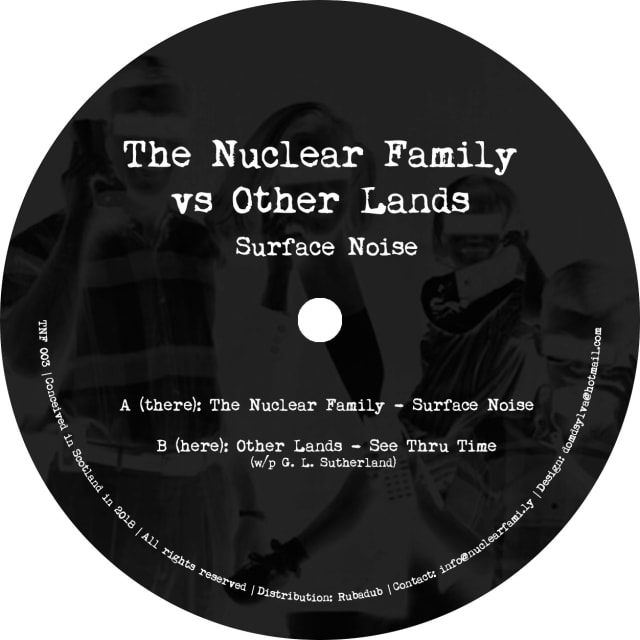
Artist: The Nuclear Family vs Other Lands
Title: Surface Noise
Label: The Nuclear Family
A: The Nuclear Family - Surface Noise
B: Other Lands - See Thru Time
Did you miss us? The Nuclear Family - Tom Churchill and Laurence Hughes - are back after a three-year hiatus, and this time we’ve roped in one of our good buddies, Other Lands, to help us deliver a double-header of deep delights for discerning DJs and dancers, cut nice and loud over a full side each.
Surface Noise, on side A, is the first of the Family’s recent studio jams to see the light of day, with its classic 808 drums and analogue bass underpinning warm pads, twinkling melodies and some subtle vocoder flourishes.
On the flipside, we’re honoured to present a killer track from Other Lands - aka Edinburgh’s veteran DJ/producer Gavin Sutherland, fresh from the success of his recent Pattern Transform 12” for Firecracker and all manner of other exciting studio and live projects. See Thru Time is a masterclass for the heads, with mellifluous chord progressions and a timeless groove.
TNF 003 will be available on vinyl via Rubadub in November, along with a digital version via Bandcamp.